
The short version
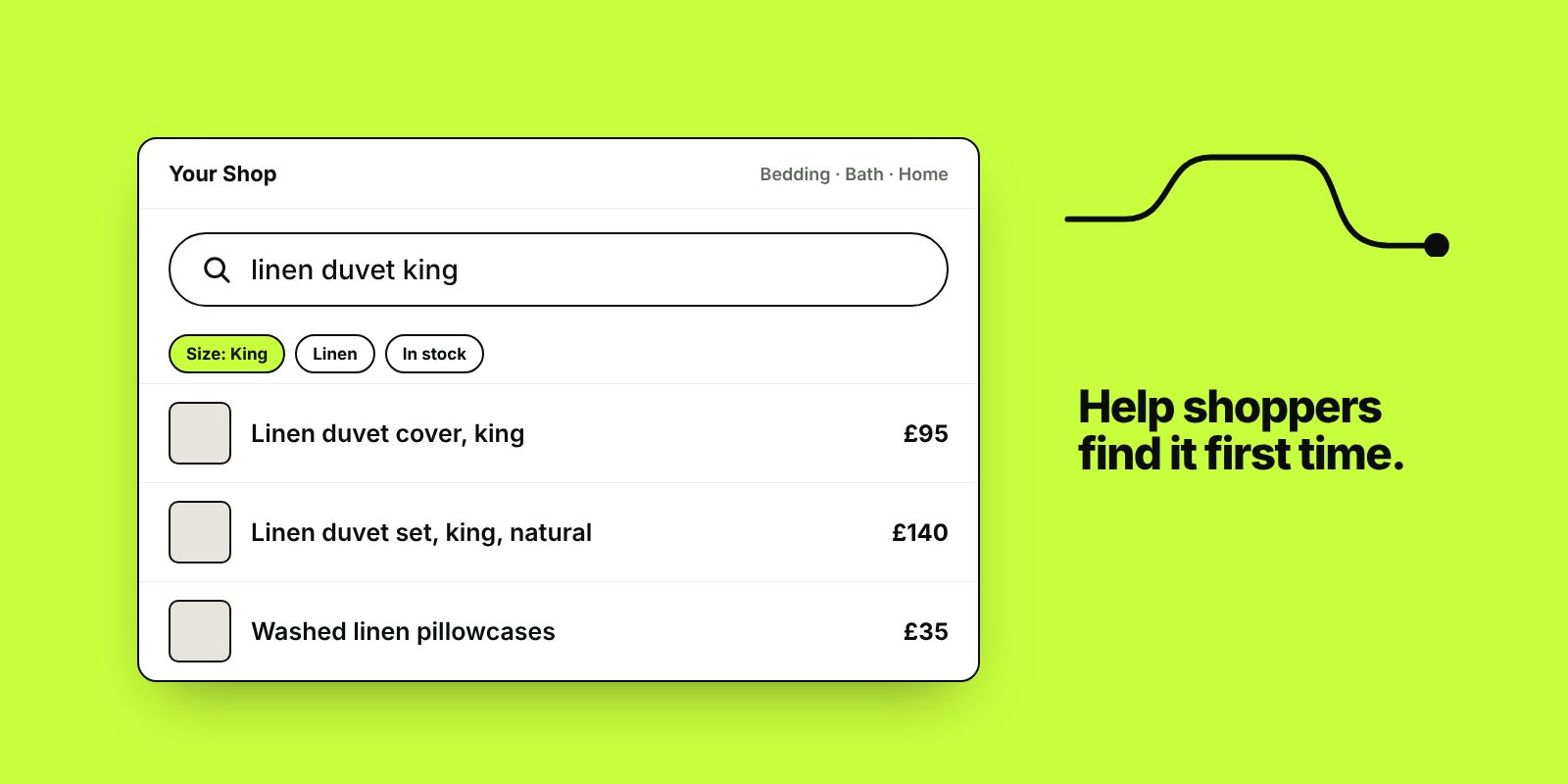
- Shoppers who use your search box have typed exactly what they want. A search that returns nothing, or the wrong products, loses them when they’re closest to buying.
- Good shop search copes with typos, plurals, synonyms and product codes, and suggests products as people type.
- A search with no results should never be a dead end. Show close matches, popular categories and a way to ask you.
- Turn on site search tracking in GA4 and read the terms every month. Failed searches tell you what to stock, what to rename and which category pages to build.
An ecommerce website search engine is the search box on your shop and the software behind it. It reads what a shopper types, matches it against your products and decides what to show first. On most small shops it’s set up once at launch and never looked at again, even though the people using it are telling you in their own words what they came for.
If you meant getting your products into Google’s results, start with our guide to SEO for ecommerce websites. The rest of this guide is about the search box on your own site.
What a good ecommerce site search does
Understands what people type
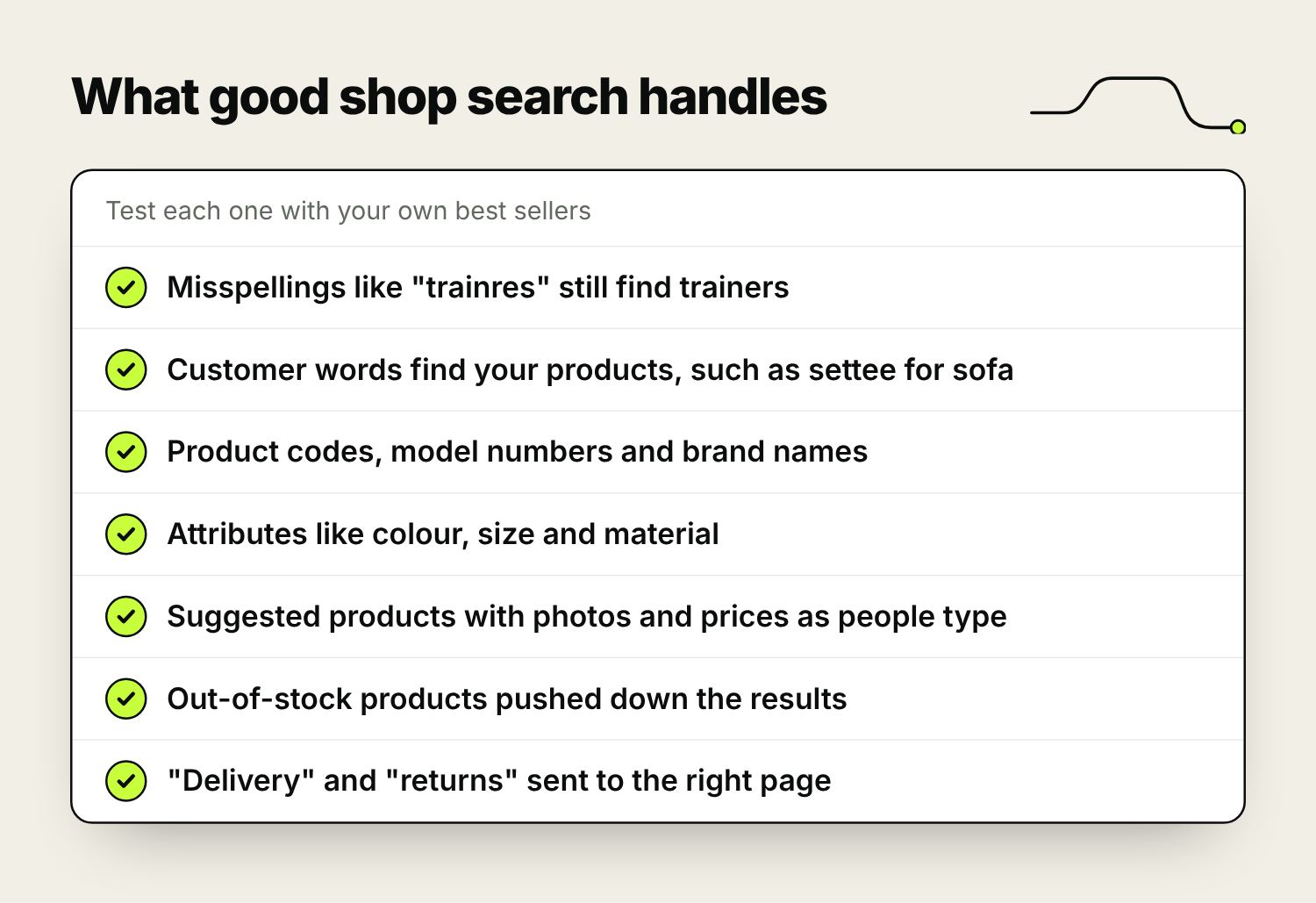
Shoppers misspell things, use singular where your titles use plural, and call products by names you never use. A search for “trainres” should still find trainers. “Settee” should find your sofas, and “hoodie” should find a product titled “hooded sweatshirt”. Repeat customers often search by product code, model number or brand, so make those searchable too.
Uses product attributes
A search for “black leather boots size 6” should return black leather boots that are in stock in a 6. Weak search returns every product with “black” anywhere in its description.
Suggests results as people type
Predictive search (or autocomplete) shows matching products with a thumbnail and price after the first few letters, which saves a lot of typing on a phone.
Puts the right products first
Relevance comes first, but you should be able to adjust the order: push out-of-stock products down, lift best sellers, and pin a particular product to the top of a particular search. If “gift set” brings up a single replacement part before your actual gift sets, shoppers assume you don’t sell them.
Lets people narrow the results
The results page needs the same filters as your category pages (size, colour, price, brand), because a search for “dress” on a fashion site can return hundreds of products.
Search can only find what’s in your product data
Most poor search results come from the products themselves. Colour, size and material need to be stored as attributes or variant options, not only mentioned in the description. Other common problems:
- Titles that use supplier codes or internal names (“Style 4021 Navy”) instead of what the product is (“Navy linen shirt, short sleeve”).
- Colours entered inconsistently, so some products say “navy”, some “dark blue” and some nothing at all.
A quick test: search for each of your 20 best sellers the way a customer would describe it. Any product missing from the first few results has a data problem or a missing synonym.
Fixing zero-results searches
Some zero-results searches are for products you don’t sell. Many are for products you do sell, described in words your search doesn’t recognise.
What the no-results page should show
- The search box, still filled in, so people can edit their search without retyping it.
- A “did you mean” suggestion when the search looks like a misspelling.
- The closest matches, best sellers or popular categories, so there’s always somewhere to go next.
- A short line inviting people to email or call if they can’t find what they need. Those messages are often the start of a sale, and they tell you what’s missing.
Synonyms and typos
Build a synonym list from your zero-results searches, the words customers use in emails and reviews, and everyday or regional words for your trade terms (trainers and pumps, jumper and sweater). Some search tools let you set one-way synonyms, so a search for “boots” includes wellies but a search for “wellies” doesn’t return every boot. If your search has no typo tolerance, add the common misspellings of your best sellers as synonyms.
Common search problems and where the fix usually lies.
| What happens | Usual fix |
|---|---|
| A misspelling returns nothing | Turn on typo tolerance, or add common misspellings as synonyms |
| The customer’s word for a product returns nothing | Add a synonym, and consider using that word in the product title |
| “Red dress” returns every product mentioning red | Store colour as an attribute and use a search that reads attributes |
| Out-of-stock products fill the first row | Add a ranking rule that moves them down |
| “Returns” lists products | Set a redirect from that search to your returns page |
| Product codes return nothing | Make SKUs and model numbers searchable |
Built-in search or a specialist app
What you start with depends on your platform, and our guide to the best ecommerce platform for SEO compares the main ones. Most Shopify themes include predictive search, and Shopify’s Search & Discovery app adds synonyms, filters and product boosts. WooCommerce uses WordPress’s own search, which matches words in product titles and descriptions and has no typo tolerance, so larger WooCommerce shops usually add a search plugin or service. Specialist search services such as Algolia, Klevu and Doofinder add typo tolerance, merchandising rules and their own search reports, at a monthly cost.
You’ve probably outgrown the built-in option if many of your zero-results searches are for products you stock, if people search your catalogue by attributes such as size, fit or compatibility, or if you sell in more than one language.
Before choosing a provider, export your top 50 search terms from GA4 and run each one through a trial on your own catalogue. Compare the results with what your current search returns.
Tracking site search in GA4
GA4 records site searches automatically if enhanced measurement is on. Check that “Site search” is ticked under Admin, Data streams, your web stream, Enhanced measurement. GA4 looks for the search term in the page address, and by default it recognises the parameters q, s, search, query and keyword. Shopify’s search results pages use q and WordPress uses s, so on most shops it works without changes. Other parameters can be added in the site search settings.
Each search is recorded as a view_search_results event with the term attached. To confirm it works, search on your own site and watch the Realtime report for the event.
There are two gaps:
- If a shopper taps a product in the predictive search dropdown, no results page loads, so GA4 may not record that search at all.
- Some search apps show results without changing the page address. Ask the provider whether it sends search events to GA4, or whether you’ll need a developer to add a custom event through Google Tag Manager.
Reports worth building
In Explore, create a free-form exploration with Search term as the dimension and Event count as the metric, filtered to the view_search_results event. Then create a segment of sessions that included a search and compare their conversion rate and revenue with sessions that didn’t. If searchers convert worse, the search is probably letting them down.
GA4 doesn’t know how many results each search returned, so it can’t list zero-results searches on its own. Your search app may report them. If it doesn’t, a developer can send a custom event or parameter whenever the “no results” message appears.
Using search terms to find missing products and category pages
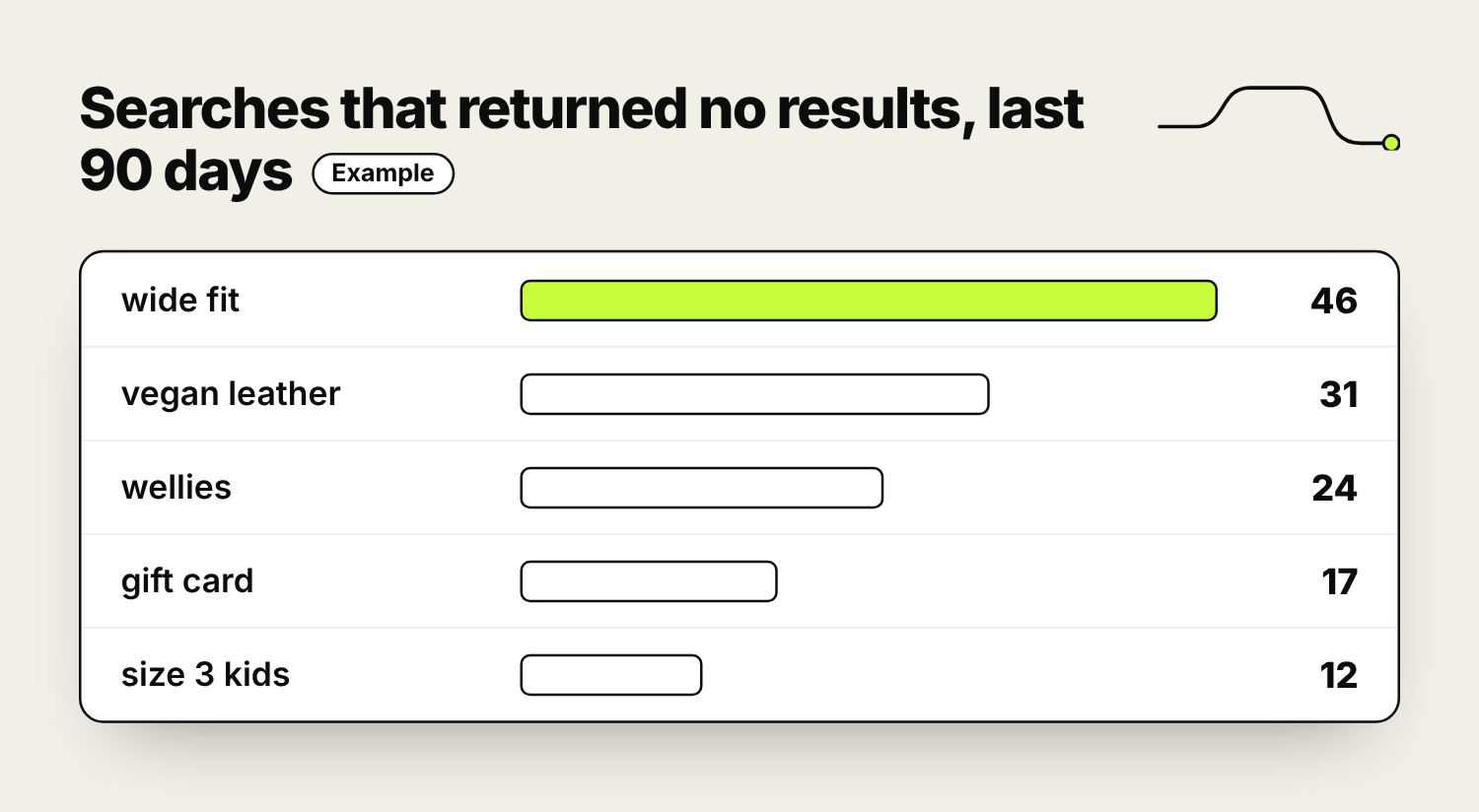
Once a month, export the last 90 days of search terms and sort them into groups.
- Products you sell that the search failed to find. Fix the product data or add a synonym.
- Products you don’t sell. Keep a running count for each. A term that keeps appearing month after month is evidence for a stocking decision.
- Themes that cut across your categories, such as “wide fit”, “vegan”, “gifts for dad” or “under £50”. These are candidates for new collection pages and menu links. If Google’s Keyword Planner shows people search for them on Google too, the page can bring in search traffic as well.
- Questions and service words, such as “how to measure” or “next day delivery”. These point to information that’s missing or hard to find.
- Searches for things already in your menu, such as “sale”. These suggest the menu is hard to use on some devices.
The words customers type into your search box are often the words they type into Google, so our ecommerce SEO work starts with the same data. On a phone the search box matters even more; our guide to mobile optimisation for ecommerce covers it alongside filters and checkout.
Frequently asked questions
What does an ecommerce search engine do?
It matches what a shopper types into your shop’s search box against your product catalogue and decides which products to show and in what order. A good one copes with typos, synonyms and product codes, suggests products as people type, and lets shoppers filter the results.
How do I track site search in Google Analytics 4?
Turn on site search in the enhanced measurement settings for your web data stream. GA4 then records a view_search_results event with the search term whenever a results page loads with a recognised parameter such as q or s in the address. Build a free-form exploration with the Search term dimension to see what people search for.
What should a no results page show?
Keep the search box filled in, suggest a corrected spelling if the search looks mistyped, show close matches or best sellers, and invite people to contact you if they still can’t find what they need.
Should I use my platform’s search or a search app?
Start with what your platform offers and check the results for your most common searches. Move to a specialist app when many searches for products you stock return nothing, when shoppers search by attributes like size or fit, or when you need control over which products appear first.
How do I add synonyms to my shop search?
Most platforms and search apps have a synonyms setting. On Shopify it’s in the Search & Discovery app. Build the list from your zero-results searches and from the words customers use in emails and reviews, then search for each term afterwards to check it works.

Founder of The Pursuit Agency in Swindon. He has worked in SEO for fifteen-odd years and leads the agency's SEO and Google Ads work for owner-led businesses across the UK.